What this guide helps you do
Temporarily stop customers ordering an item or option, restore it, and apply availability changes to a category without deleting your catalog.
Low-stock alerts belong to Partner Notifications and the store's Stock app. To receive each push through one app on this device, follow device linking.
Before you start
Use Manage inventory access. Check the correct store and current stock. Availability controls are live operating changes; you do not need to save the Visual Editor afterward.
Where to find it
Partner → Menu/Products. Use the item availability control or a category's bulk control. The Stock app offers the focused inventory screen for its store.
Workspace → Inventory can also select a store and send you to its Partner catalog. It is a shortcut; availability still follows the same permissions.
Step by step
-
Find the item with Search items/products and read its current availability.
-
Open its availability control. Choose the offered temporary duration or unavailable option that matches the shortage.
-
If setting a custom return time, confirm the displayed store timezone and the intended date/time.
-
Confirm the change and wait for success. Check that the row now shows the intended unavailable/snoozed state.
-
For an unavailable extra or variant, use that option's availability control. Ensure a required group still has a valid available choice.
-
For a whole category, use its bulk availability action, read which items will be affected, and confirm only when the entire group should change.
-
When stock returns, choose the available/resume option or allow an explicit snooze expiry to end. Check product/SKU stock too if tracking is on.
-
Open the public item and confirm customers cannot order unavailable choices and can order the restored choices.
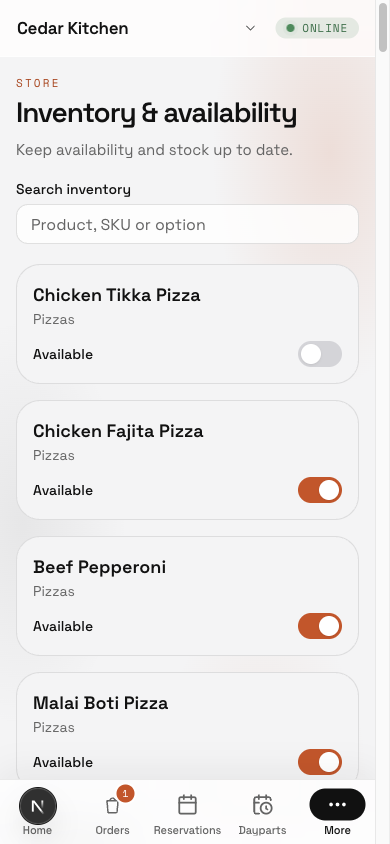
In Inventory, Search inventory finds a product, SKU or option. Product availability, each SKU’s availability, and Options & add-ons can be changed separately when Inventory is Manage. Snoozed items become available when their saved time expires.
Understand the choices
-
Snooze is a temporary restriction, with its expiry interpreted in the store timezone. Visibility and catalog deletion are separate controls.
-
A visible item can be out of stock. Customers may still see it even when ordering is disabled.
-
An available item can remain unorderable because of closed hours, a paused/offline store, dayparts, or tracked zero-stock SKUs.
-
If the network fails, the list may roll back the optimistic change. Wait for the success state and retry only after checking the current row.
Check the result
The saved availability appears in Partner and the storefront. A temporary shortage does not remove the product or its past order records.
If something goes wrong
-
The item is still unavailable after resume: inspect SKU stock, option availability, hours, dayparts, and store status.
-
A required variant is missing: restore at least one valid variant or correct the item configuration.
-
A bulk change affected too much: review and restore the intended rows individually; avoid deleting the category.
Support partner access
Open Inventory from the store navigation (More → Inventory on a phone) to manage item availability independently of catalog editing. A support partner needs Inventory & availability Manage; View shows stock without changing it. The focused Stock app uses the same Inventory permission.
Screenshots
These screenshots use demonstration data. Your names, amounts and available controls may differ. Current values on your own screen take priority.
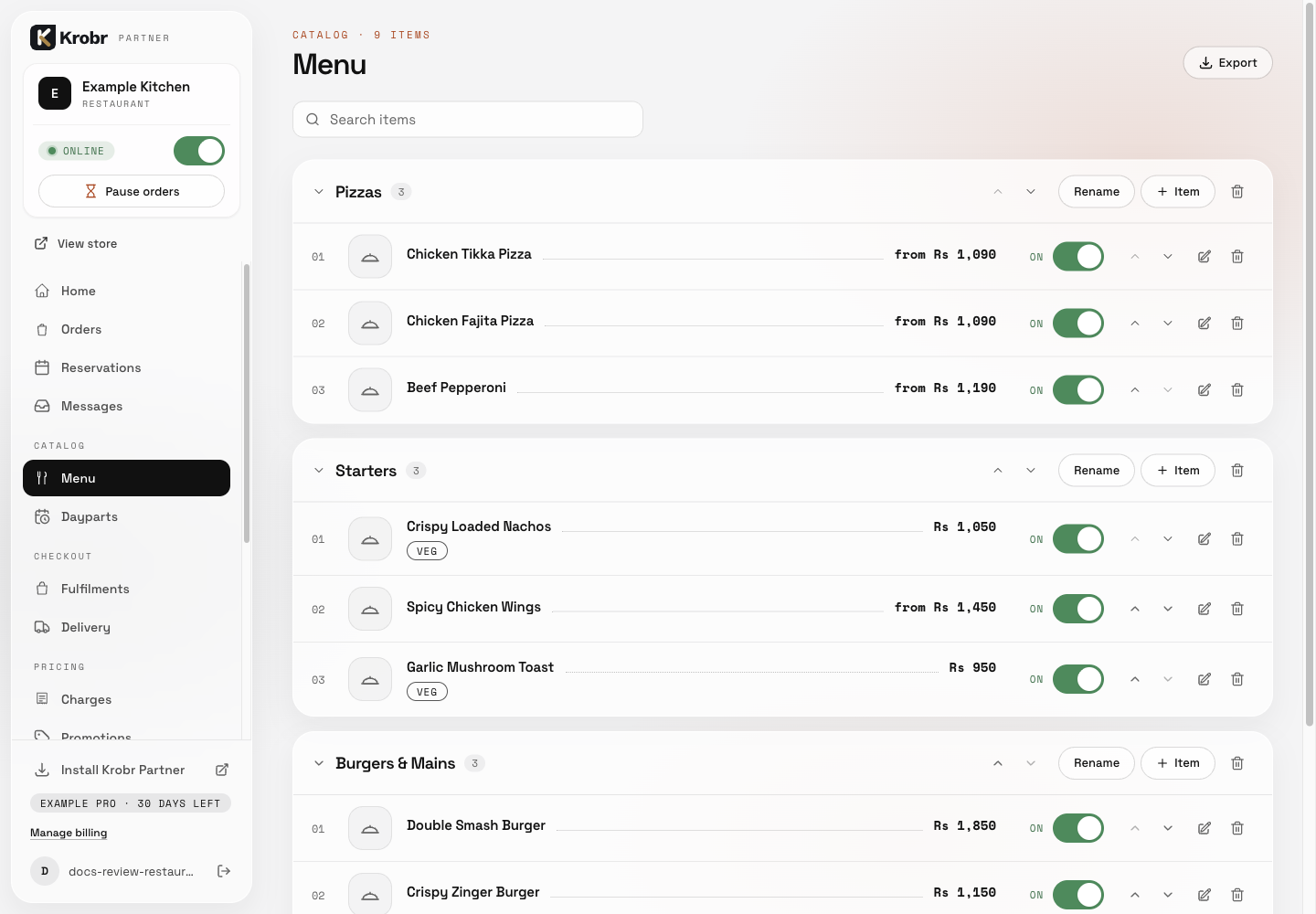
Mark items unavailable, snooze them, and use bulk availability: find the controls in this example screen and follow the numbered instructions above. Retained English example from 13 October 2026. The Partner account area now also includes Language, which is not shown in this dated sidebar; follow the numbered steps for the current screen.