What this guide helps you do
Offer selected restaurant items during specific weekday/time windows while keeping the store's overall opening hours as a separate schedule.
Before you start
Use Manage inventory access in a restaurant. Have the products and their intended service times ready. Dayparts are restaurant-specific; shop products do not use this restaurant scheduling screen.
Where to find it
Partner → Dayparts, usually behind More on a phone. Product assignment can also appear in the product editor's Dayparts section.
Step by step
-
Open Dayparts and enter New daypart name, for example Breakfast. Choose Add daypart while the screen allows another one.
-
Open its windows editor and add the weekdays and start/end times when those products should be available.
-
Check the store timezone. For overnight service, use valid windows that cover the intended days without conflicting overlaps.
-
Choose Save windows and wait for success. A name change or product assignment does not automatically save an unsaved window draft.
-
Open the product-assignment control and choose the existing products for that daypart.
-
Use no daypart assignment for an all-day item. Assign a product to the necessary windows when it is offered in more than one service period.
-
Repeat for the remaining service periods within the screen's limit, then check that windows do not conflict.
-
Inspect the public menu during the relevant window and outside it. The store must also be open/online and the product otherwise available.
Understand the choices
-
Dayparts schedule products; Hours schedules the whole store. A breakfast window does not open a closed store.
-
An item without a daypart assignment is all day, subject to other availability restrictions.
-
Overlaps and limits are validated on save. Use the field's message rather than adding duplicate overlapping windows.
-
Removing a daypart changes scheduling assignments; it does not delete the products themselves.
Check the result
Scheduled items are orderable only in their saved service windows, and all-day items retain their ordinary availability.
If something goes wrong
-
Item missing at the expected time: check timezone, weekday, windows, product assignment, and store hours.
-
Save rejected for overlap: adjust the conflicting ranges and resubmit that daypart.
-
Cannot add another daypart: the current service-period limit has been reached; consolidate the schedule.
Screenshots
These screenshots use demonstration data. Your names, amounts and available controls may differ. Current values on your own screen take priority.
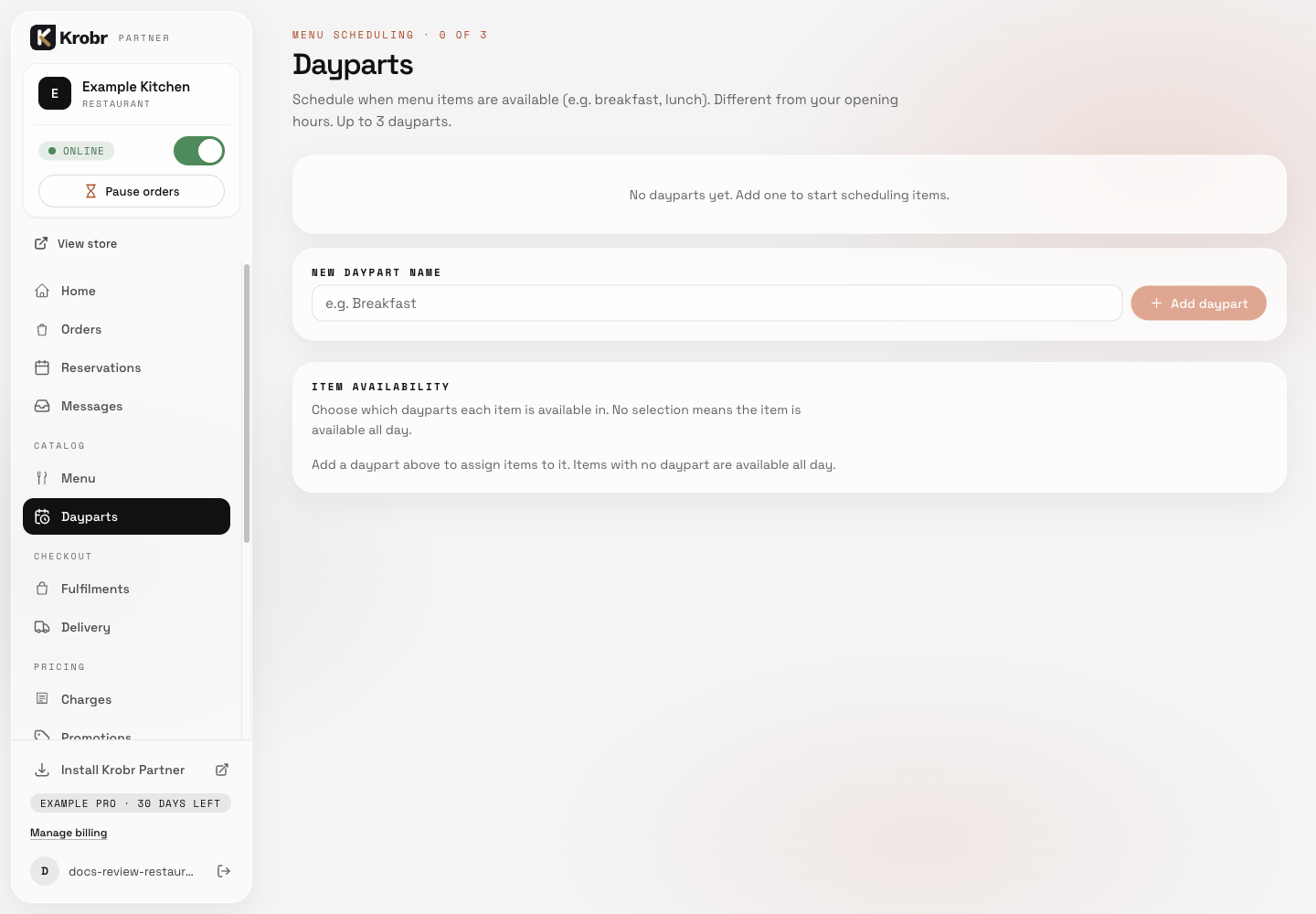
Schedule breakfast, lunch, and dinner items with dayparts: find the controls in this example screen and follow the numbered instructions above. Retained English example from 13 October 2026. The Partner account area now also includes Language, which is not shown in this dated sidebar; follow the numbered steps for the current screen.