What this guide helps you do
Control when your store takes orders, pause service without losing orders, add special closures, and understand how the store timezone affects every schedule.
Before you start
Use Manage inventory access for operating controls, or the owner for publishing. Decide your real weekly hours and store timezone. Publishing status and day-to-day online status are separate.
Where to find it
Partner's top store-status control handles online, pause, and busy mode. Partner → Hours handles weekly hours and closures. On a phone use the status pill or More → Hours.
Step by step
-
Check the store name and status at the top of Partner. Open the status control to review online, pause, and busy options.
-
For a short break, choose a pause and its return time. For slower service, use the offered busy/preparation setting rather than deleting hours.
-
Open Hours. If hours have never been configured, read the notice: the store currently accepts orders at any time until you set a schedule.
-
For each weekday, choose Open or Closed and enter the requested start/end times. For an entire calendar day, turn on Open 24 hours; the time inputs hide. Turn it off to return to 09:00–17:00. Add another range when you have a lunch and dinner service.
-
Check the displayed store timezone and any overnight range. If the closing time belongs to the next day, use the supported overnight controls/ranges instead of assuming the device's date.
-
Choose Save changes and wait for success. Setting every day Closed deliberately closes the physical schedule; it does not reset it to always-open behavior. Restaurant immediate checkout and retail Pickup follow this closure, while enabled retail delivery methods remain available.
-
For a holiday or special break, add a closure with the requested dates/times and reason. Remove the closure through its own control when it no longer applies.
-
In the Visual Editor, choose whether to display Opening hours on the storefront. Hiding that presentation does not stop the operational hours being enforced.
-
Open the public page and inspect its open/closed message and available methods. Customers can add eligible items to their basket while closed. Restaurant immediate checkout is unavailable, but valid future reservations remain available. For retail stores, Pickup is disabled outside hours/on closure dates while enabled Cash on delivery and Pay by bank remain available.
-
Continue existing orders while paused/closed. Check the status again when service resumes.
Understand the choices
-
Never-configured hours mean no schedule gate. A configured week with all days closed means closed all week.
-
Timezone belongs to the store. A customer or traveling owner's device timezone does not redefine the saved operating hours.
-
Manual pause and offline stop immediate restaurant checkout and every retail checkout method. Valid future restaurant reservations remain available. Hours and closure dates stop restaurant immediate checkout and retail Pickup. Publication and platform restrictions remain separate.
-
Open 24 hours covers that weekday in the store timezone. Holidays still override it; existing overnight overlap checks still apply.
-
Busy/preparation time affects service estimates where offered; it does not automatically complete or accept every order.
Check the result
Partner and the storefront show the intended operating state, and order availability follows the saved schedule in the store timezone.
If something goes wrong
-
Closed unexpectedly: check every active restriction, the store timezone, and configured hours before changing the online switch.
-
All-Closed saved by mistake: reopen the intended days and Save changes.
-
The hours card is hidden but checkout is closed: design visibility does not disable operating hours.
-
A closure has the wrong day: review the timezone and dates, then correct that closure.
Screenshots
These screenshots use demonstration data. Your names, amounts and available controls may differ. Current values on your own screen take priority.
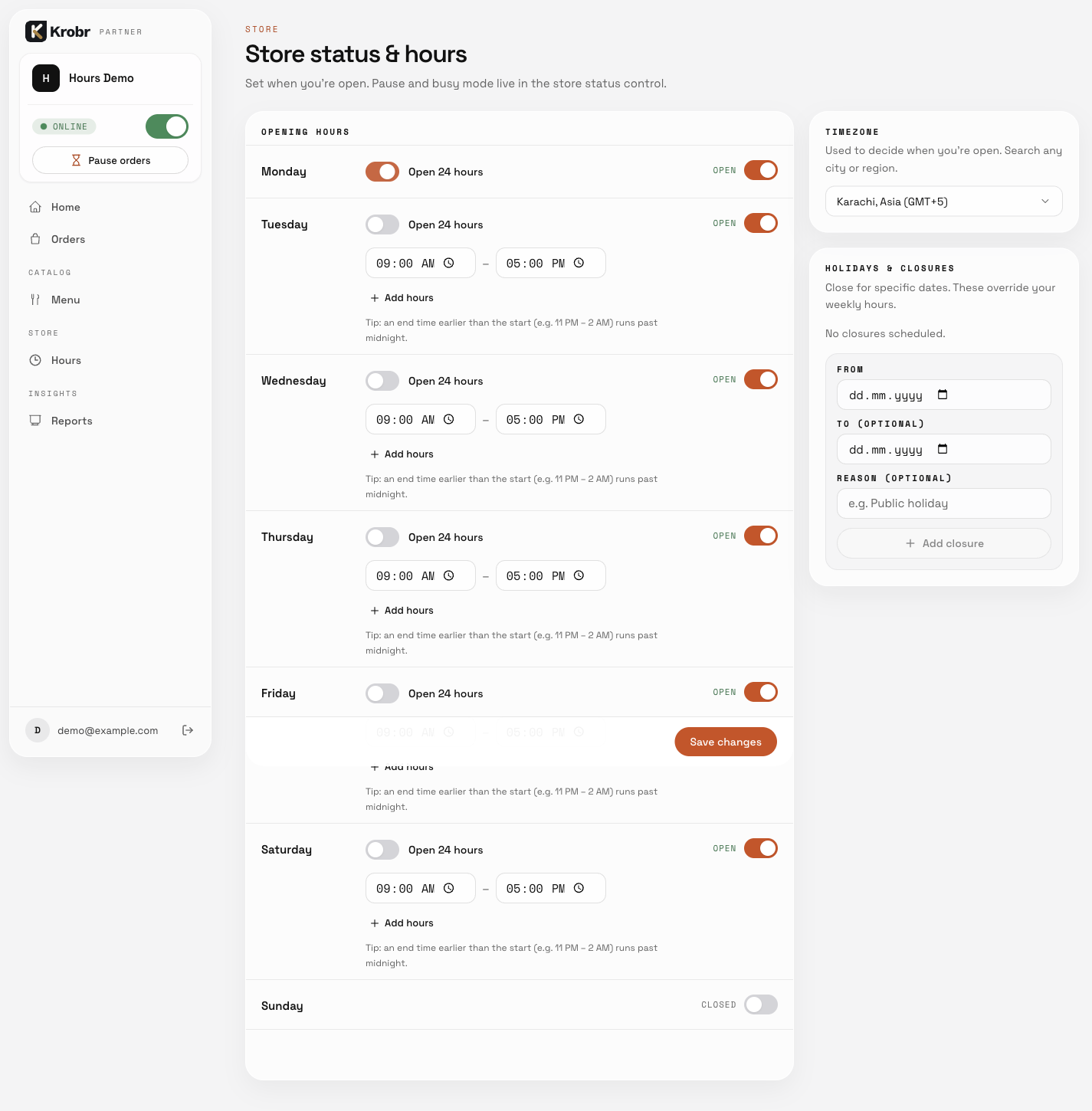
Weekly opening hours with Open 24 hours enabled for Monday; other open weekdays use time ranges. English demonstration captured on 14 October 2026. The current Partner Language row is not shown in this example; follow the instructions above for the current controls.