What this guide helps you do
Control whether new customers can use your storefront, distinguish saving from publishing, and resolve the requirements that can prevent a store from going live.
Before you start
Use the owner or an authorized platform account. The owner must have a verified email and primary contact phone. Confirm the account's package allows the store to be active.
Where to find it
Experiences → your store → Publish/Status controls. The Visual Editor also offers Publish, Re-publish, or Take offline. Partner's store-status controls handle day-to-day pauses separately.
Step by step
-
Open the correct store and read its current state: draft, live, offline, archived, or suspended where shown.
-
Save any pending Visual Editor changes before publishing if you want them included. A Publish action changes status only.
-
Read a publish-blocker message before clicking. Follow its link to verify email or add the owner's primary phone in Business.
-
Choose Publish or Re-publish and wait for the result. In the editor, unsaved changes produce a confirmation because those edits will not be included.
-
Open the public address and confirm customers can see the intended catalog and checkout.
-
To stop public use, choose Take offline and read the confirmation. Use a short Partner pause instead when you only need to stop taking new orders temporarily.
-
Before reopening, confirm any package or suspension issue is resolved, then choose Re-publish.
-
Continue handling existing orders in Orders. Taking a store offline or archiving it does not erase those orders.
The Experiences row menu also offers Publish, Re-publish or Take offline when your permissions and the store’s state allow it. The same confirmations apply, and the result banner appears back on the list. A suspended store does not offer a status action.
Understand the choices
-
Save persists design changes and applies them immediately to the stored storefront. Publish changes whether that storefront is live.
-
Offline is not a short pause. A billing downgrade or expired package can also affect which stores remain active.
-
Suspension is a platform restriction; owners cannot lift it using the ordinary Publish button.
-
Owner phone and verified email are required even when a platform admin helps publish the store.
Check the result
The status control and public storefront agree. Check the live address after success; an unsaved preview alone is not evidence that customers see the change.
If something goes wrong
-
Publish is disabled or rejected: use the exact blocker link, then retry after saving the required information.
-
Customers cannot order while the page is visible: check Partner's online/pause/hours state and your submission allowance as well as the publish status.
-
The saved design is missing: save it explicitly; accepting the unsaved-change publish warning does not save your draft.
Screenshots
These screenshots use demonstration data. Your names, amounts and available controls may differ. Current values on your own screen take priority.
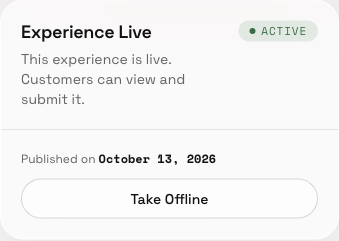
Publish, take offline, and reopen your store: find the controls in this example screen and follow the numbered instructions above.
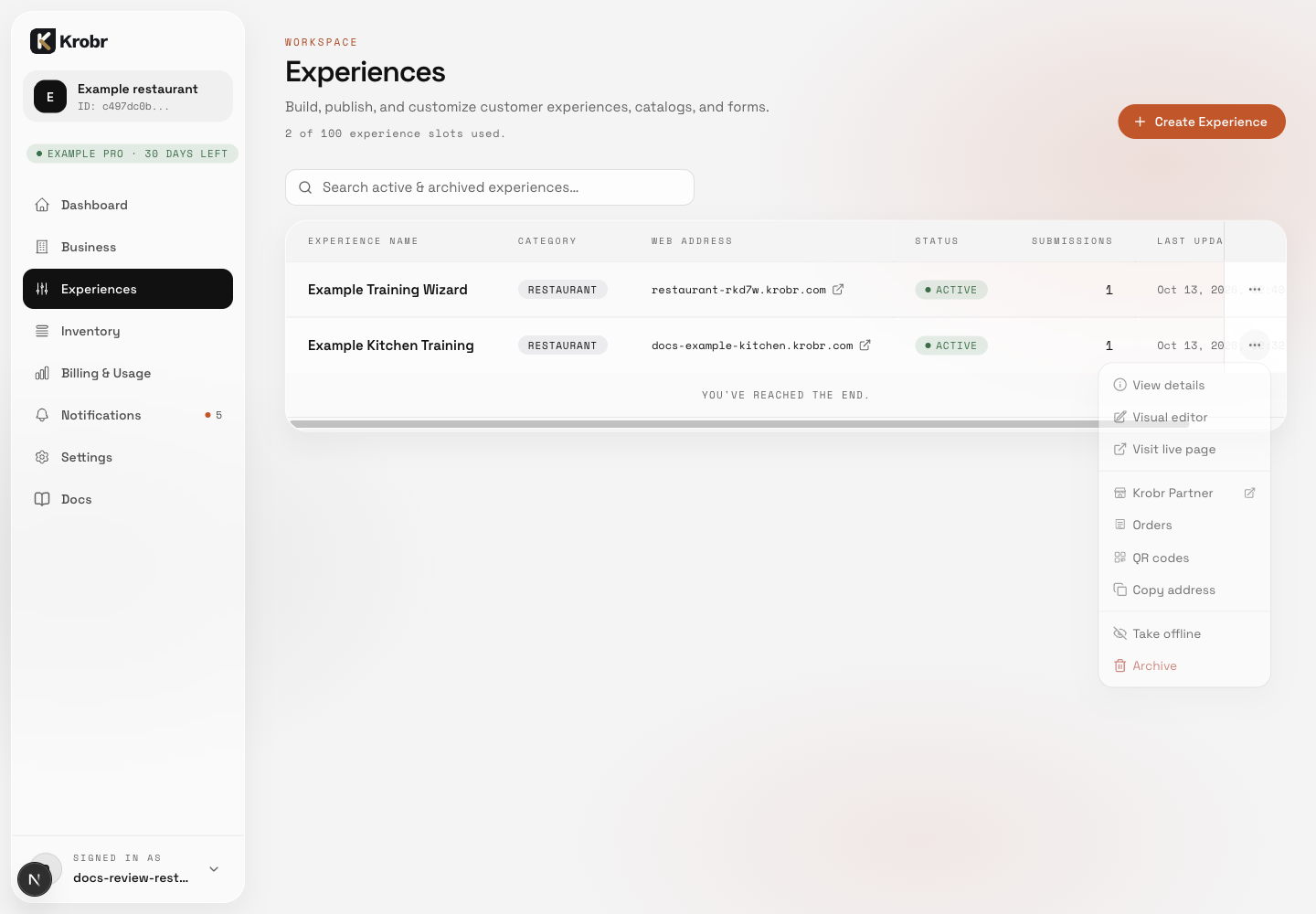
Publish, take offline, and reopen your store: find the controls in this example screen and follow the numbered instructions above.