What this guide helps you do
Make an independent draft copy of a store, temporarily archive a store you no longer use, restore it, or understand permanent deletion before confirming it.
Before you start
These are owner/admin actions, not ordinary team permissions. Check that you selected the correct store and have room in the package before cloning or restoring an active store.
Where to find it
Workspace → Experiences. Open an active row or View details for Clone Experience. You can also open the row's Actions for [store name] menu and choose Archive without leaving the list. Use the Archived list for Restore and permanent deletion. On a phone use Experiences, then the row/card actions.
Step by step
-
To clone, open the source store and its Clone card. Enter New Experience Name and, if offered and entitled, Custom Web Address (optional).
-
Submit the clone form and wait for success. The copy is a new draft with its own reserved address; inspect its catalog and configuration before publishing.
-
To archive, choose Archive from the original store’s row menu or Archive Experience on its detail page. Read the confirmation, including any open-order notice, and confirm only the intended store.
-
The archived store stops new public access and orders. Existing customers can still use their private tracking links, and owners/admins can handle existing orders. Ordinary shared members may lose access once the store is archived; the owner should finish those orders.
-
To restore, open Archived in Experiences and choose Restore on that store. Review its resulting status and publish requirements before reopening it.
-
Permanent deletion is available only for an archived store. Read the destructive confirmation and type the requested confirmation text when asked.
-
Export any records you need before permanent deletion. Do not use permanent deletion merely to pause service.
-
After any action, return to Experiences and verify the correct original/copy/status. A deleted store's web address remains reserved and cannot be reused by another store.
Understand the choices
-
Clone copies configuration/catalog into an independent store; it does not copy the original store's order history into new orders.
-
Archive can be reversed with Restore. Permanent deletion removes the store's retained records and cannot be treated as reversible.
-
The clone's optional custom address is an entitlement-controlled permanent choice. A blank field allows a generated address.
-
Archiving can leave a custom domain attached. Its row menu offers Disconnect [domain]. There are no recurring Krobr domain charges on eligible packages; archive alone does not disconnect the domain. Historical monthly charges are not refunded retrospectively.
Check the result
The clone appears as a separate draft, or the original appears in the correct active/archived list. After permanent deletion, the store no longer opens, but its former web address is not available for another store.
If something goes wrong
-
No action button: verify ownership; a shared team member cannot clone, archive, or transfer a store merely because they can edit it.
-
Clone/restore rejected by a limit: review the current package allowance before trying again.
-
Open orders remain after archive: this is intentional, so customers and staff can finish them. Continue in Orders.
-
Custom address already used: choose an available valid address; archived/deleted addresses remain reserved.
Screenshots
These screenshots use demonstration data. Your names, amounts and available controls may differ. Current values on your own screen take priority.
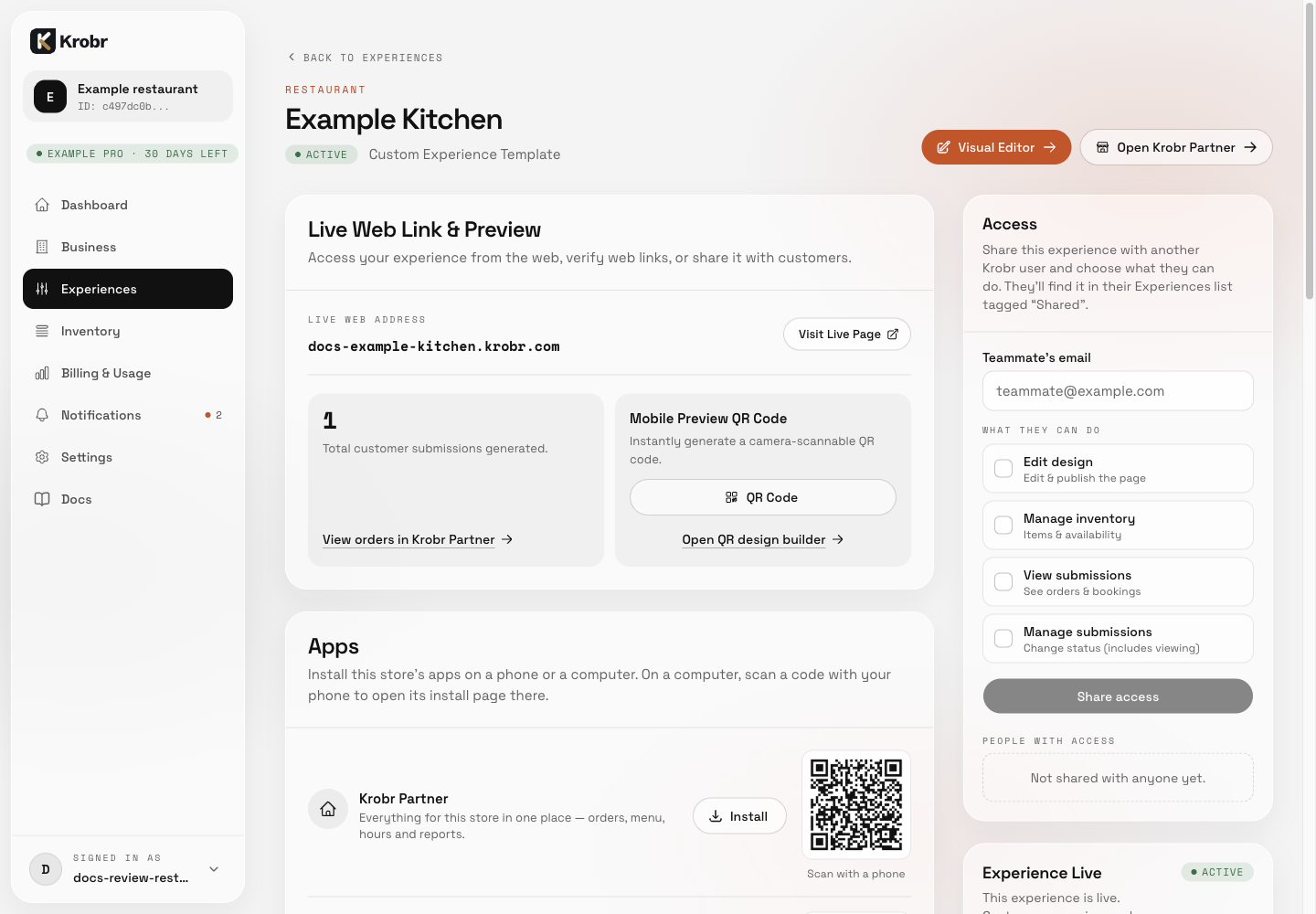
Clone, archive, restore, or permanently delete a store: find the controls in this example screen and follow the numbered instructions above.
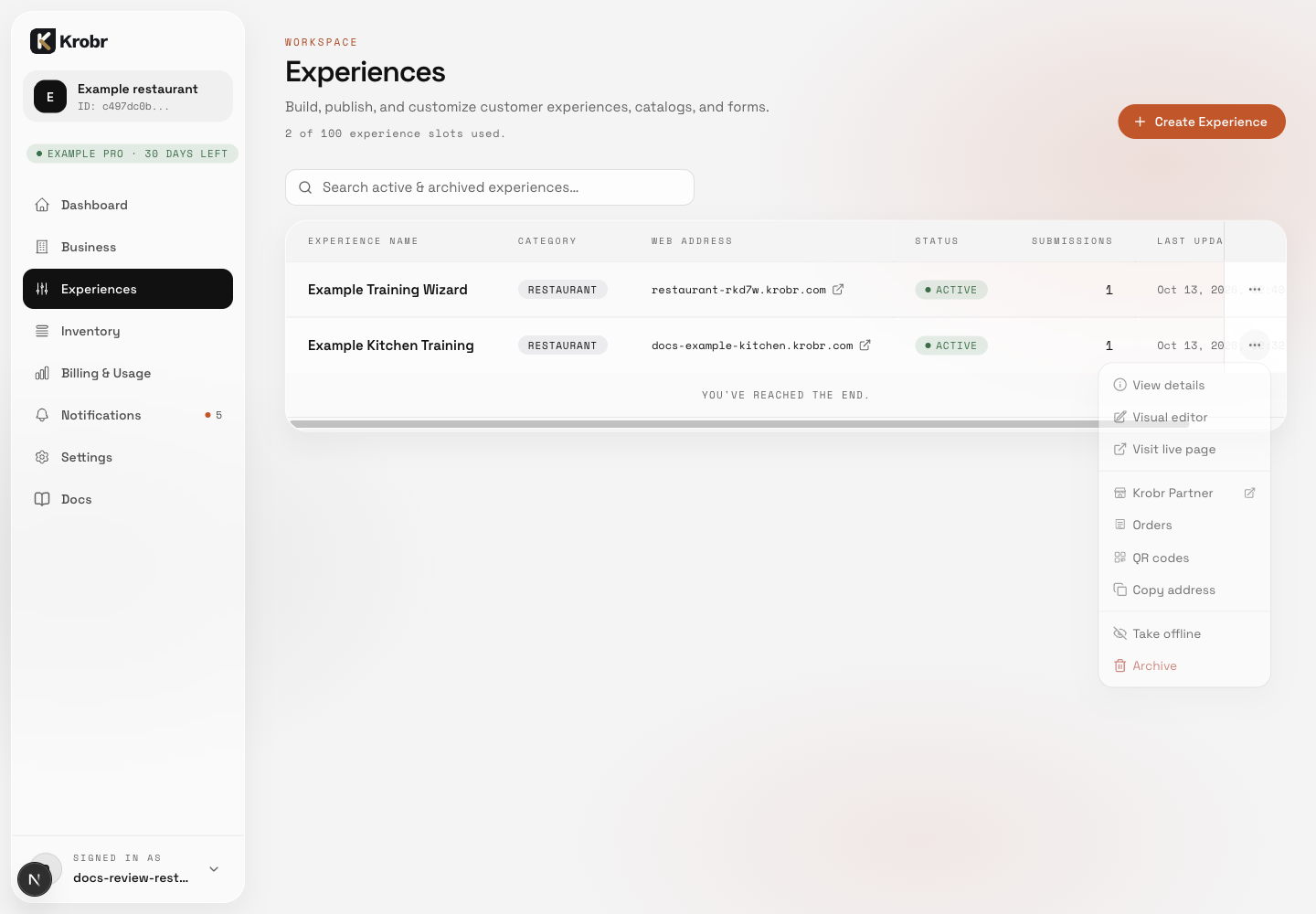
Clone, archive, restore, or permanently delete a store: find the controls in this example screen and follow the numbered instructions above.