What this guide helps you do
Send a tracked request for a package change, balance help, store setup or another question.
Before you start
Sign in as the account owner and keep a working callback phone number ready. A request asks someone to help; it does not itself record a payment or change a package.
Where to find it
Use the support request button on the account or billing screen. On a phone it opens a sheet; scroll within it to reach all fields and the submit button.
Step by step
-
Open the request form and choose Change my package, Add balance, Help setting up my store or Something else.
-
For Change package, choose Package and Monthly/Yearly cycle. Only available alternatives appear.
-
For Add balance, enter Amount if known and accurately answer whether you already paid. A request is not payment evidence by itself.
-
For setup or other help, describe the task and relevant store. Include what you tried and the message you saw; never include passwords.
-
Confirm the callback phone and submit once. Read the success message and find the request in your request history.
-
Follow its status. If the request is no longer needed and cancellation is available, cancel it from the request card.
Understand the choices
-
You can have only one open request of the same type. Complete or cancel it before sending another of that type.
-
Free account support requests differ from the paid custom-domain connection job. Paid jobs show their fee before submission.
-
If no support partner is assigned or active, the form's availability and destination follow the account's current support setup.
Check the result
A single request appears with the correct details, callback number and current status. Package or balance changes should be verified separately in Usage.
If something goes wrong
-
No packages listed: try another cycle or use Something else to describe the need.
-
Duplicate/open-request message: use your existing request instead of resubmitting.
-
No callback response: confirm the saved phone and request status. Correct the details using the controls available on your account.
Screenshots
These screenshots use demonstration data. Your names, amounts and available controls may differ. Current values on your own screen take priority.
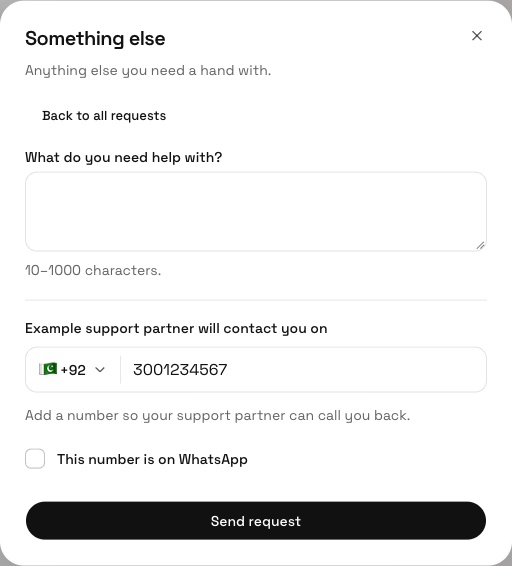
Something else asks for a clear description and Contact number before Send request.