What this guide helps you do
Understand your current package, compare live prices/limits, and request an upgrade or cycle change through the support partner rather than assuming a request activates it instantly.
Before you start
Use the business owner account. Check your billing currency and the available balance. Owners request package changes; their active support partner or authorized platform staff performs the actual change.
Where to find it
Workspace → Billing & Usage → Packages/current package. On a phone use Billing. Pricing also shows public packages; the current public values are displayed below this guide when available.
Step by step
-
Open Billing & Usage and read the package name, status, cycle, paid-through date, and any pending change.
-
Compare Packages in your billing currency. Review stores, orders per cycle, seats, storage, QR downloads, exports, and paid features—not just price.
-
Choose the intended Monthly or Yearly cycle and inspect the amount for that choice.
-
Use Request {package} or the offered request action. Confirm the package/cycle and your callback phone, add a useful note, and submit.
-
Read the request success and find it under Your requests. A submitted request does not activate the package itself.
-
Follow the support partner's contact/payment instructions. If additional balance is needed, arrange a top-up through the billing instructions.
-
After the partner/staff changes the package, reopen Billing & Usage and confirm the actual package, cycle, next renewal, balance debit, and invoice/history.
-
If a change is scheduled for renewal, read the pending package/cycle and effective date rather than expecting today's limits to change immediately.
-
Before a downgrade, inspect how store/seat/storage limits affect your current account. Continue servicing existing orders even if new submissions are paused.
Understand the choices
-
Public prices and entitlements can change through platform settings/plans. Use the live values rather than a copied amount from a screenshot.
-
A monthly or yearly cycle is the paid billing period. The app displays its actual reset and renewal dates.
-
Packages with the custom-domain entitlement include it without recurring Krobr charges. Self-service setup is free; optional assisted setup is quoted once and charged when a helper claims the request. Losing the entitlement starts a seven-day domain grace; upgrading back clears it.
-
Auto-renew, a scheduled change, and a request awaiting a partner are different states.
-
A bigger package does not automatically lift a platform suspension or fix a wrong product configuration.
Check the result
The actual package card changes only after an authorized package action. You can distinguish a pending request, a scheduled change, and your current active entitlement.
If something goes wrong
-
Only Request buttons appear: owners cannot record payments/change packages directly; use the request flow.
-
Request rejected as duplicate: inspect the existing open request of that type rather than submitting another.
-
Package unavailable in this currency: choose an offered active package/cycle and check billing currency.
-
Upgrade requested but limit unchanged: check the request and actual package status; a partner still needs to perform the change.
Screenshots
These screenshots use demonstration data. Your names, amounts and available controls may differ. Current values on your own screen take priority.
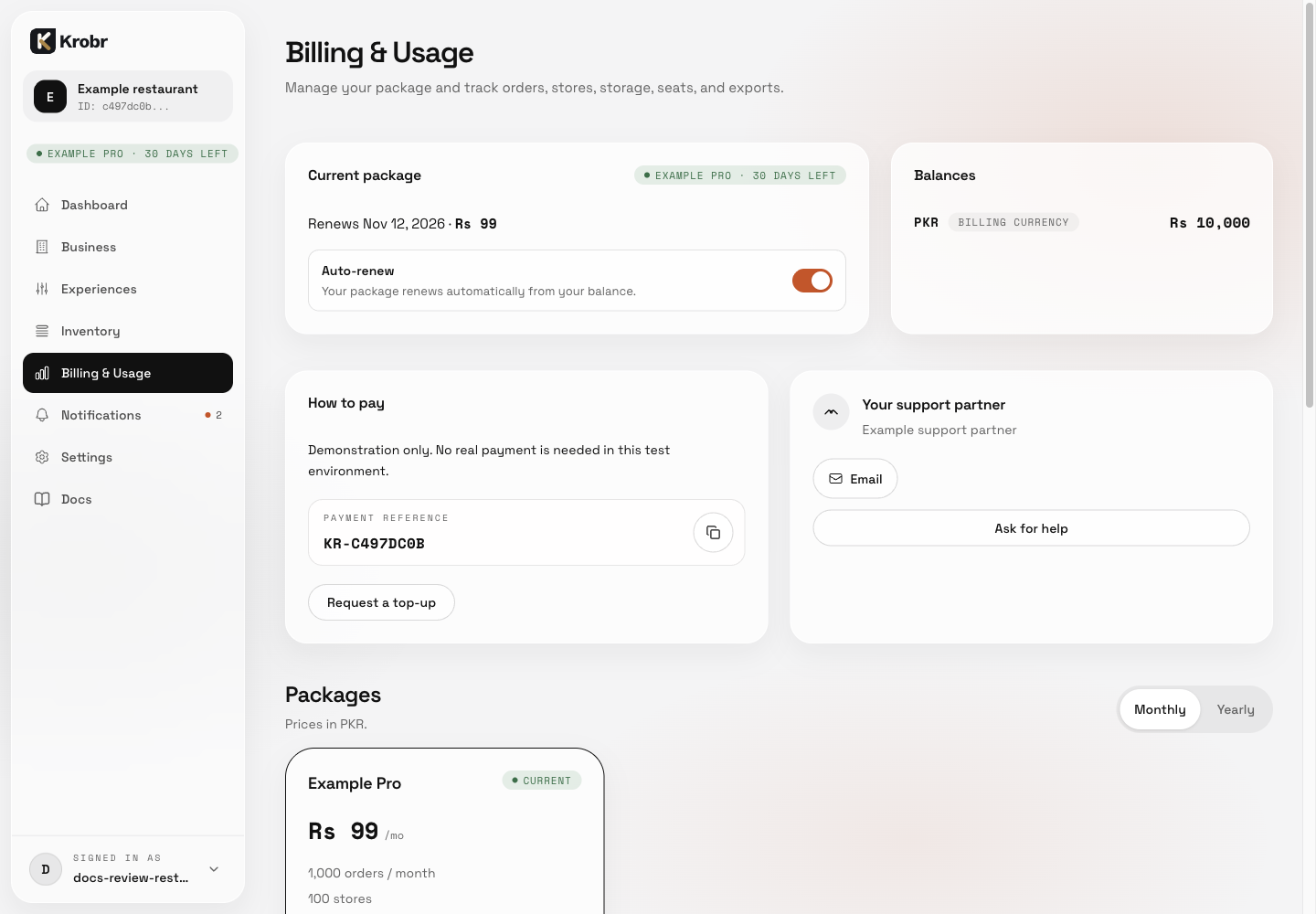
Compare packages and request a package change: find the controls in this example screen and follow the numbered instructions above.