What this guide helps you do
Change the store's order currency where permitted and understand the marketplace preference, while keeping account billing currency and future marketplace availability separate.
Use Notification devices in the alerts settings to review registered apps and store coverage. Send test alert checks sending to the current app; Repair notifications renews its setup. The launch banner’s Enable button opens the native permission prompt after your tap. See notification devices and troubleshooting.
Before you start
Use the store owner or the required settings permission. Review every existing catalog price before changing currency: amounts are not automatically converted using an exchange rate.
Where to find it
Partner → Settings; on a phone More → Settings. Account Billing currency is in workspace Settings, not this store-settings page.
To change your personal app language, use Language / Zaban in the full Partner sidebar account block, or its account block in More on a phone. Workspace Settings offers the other placement. It is not a store setting and does not require permission to change store settings; it still requires your own sign-in. See Change Krobr app language.
Step by step
-
Open the correct store's Settings and read the current Currency.
-
Review catalog prices, variant prices, delivery fees, charges, and any copy mentioning money before choosing a new currency.
-
Select the intended currency, read any warning, and save using the currency control's action.
-
Recheck each monetary amount in Partner and the public storefront. A changed currency label does not mean an exchange-rate conversion occurred.
-
For Marketplace, read the entitlement gate and explanatory copy. Set the preference only if your package permits it.
-
Do not treat this preference as proof of a live public listing. The current feature records/gates the opt-in; marketplace discovery is a later product surface.
-
To change how Krobr bills your account, go separately to workspace Settings → Billing currency and follow that guide.
Understand the choices
-
Store currency applies to products/orders. Billing currency applies to packages and balances; the two can differ.
-
Historical orders retain their submitted currency and pricing snapshots.
-
Marketplace opt-in is a package-controlled preference; it does not publish a new marketplace UI by itself.
-
Account/store permissions still apply; owning a support-partner account does not grant store ownership.
Check the result
New storefront amounts use the chosen store currency after you review their numeric values. The account's billing currency is unchanged unless you change it separately.
If something goes wrong
-
Currency changed but prices look wrong: correct the numeric catalog/fee amounts; do not assume automatic conversion.
-
Marketplace switch is gated: read the current package entitlement and available upgrade path.
-
No marketplace listing appears: the preference is not a live discovery feature in this release.
Support partner access
An assigned support partner needs Store settings Manage for these changes; View is read-only. The owner’s Support partner access panel in Settings controls every applicable section. A partner cannot change their own access.
Screenshots
These screenshots use demonstration data. Your names, amounts and available controls may differ. Current values on your own screen take priority.
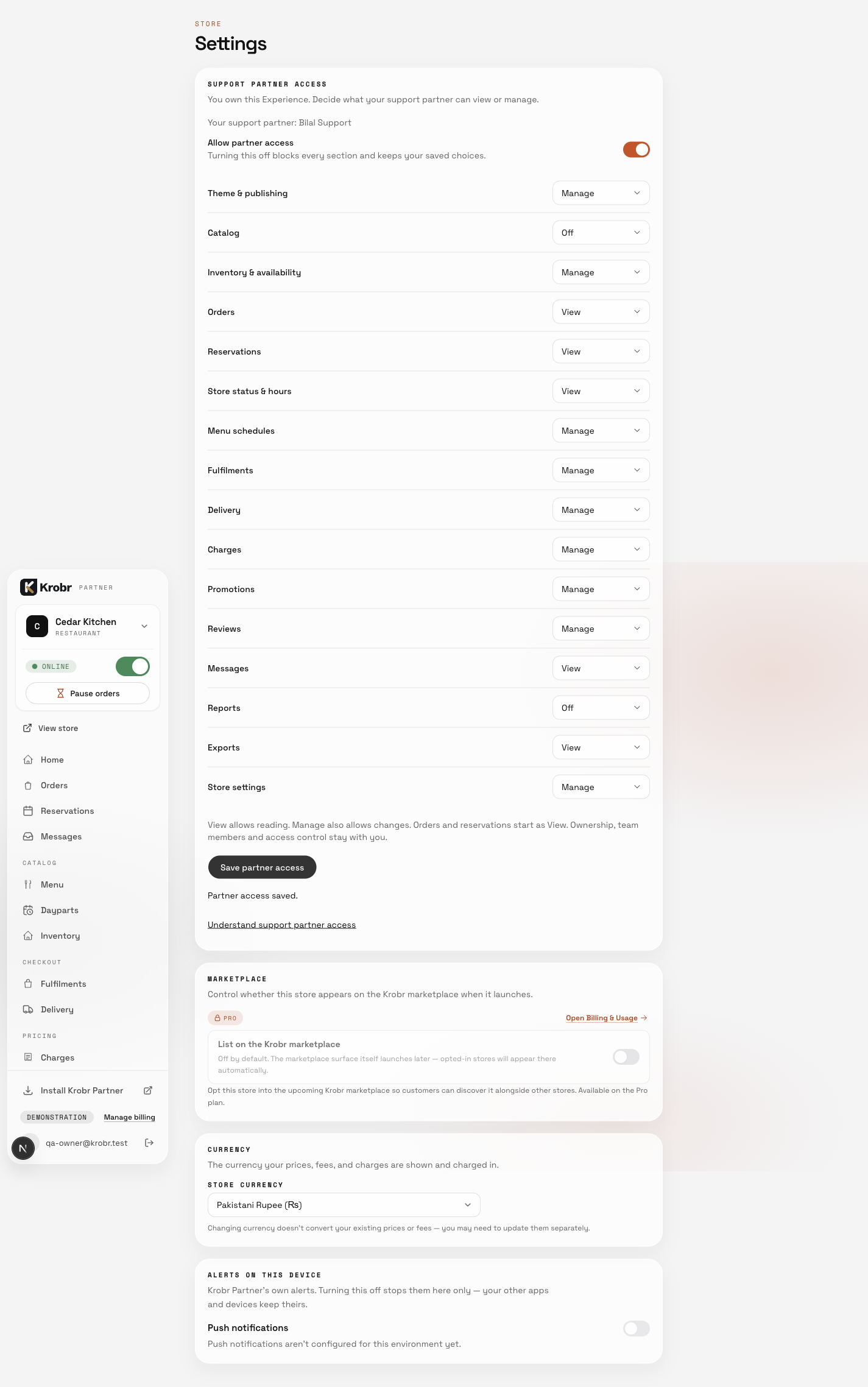
Change store currency and understand marketplace settings: find the controls in this example screen and follow the numbered instructions above. Retained English example from 13 October 2026. The Partner account area now also includes Language, which is not shown in this dated sidebar; follow the numbered steps for the current screen.