What this guide helps you do
Set tax/service/packaging charges and store promotions, understand their calculation basis, and test voucher or quantity offers before customers use them.
Before you start
Use the store's configuration/inventory permission. Decide the names, amounts, scope, and active dates. Check the store currency and timezone before typing money or dates.
Where to find it
Partner → Charges or Promotions; both are behind More on a phone. These are separate from a descriptive sale badge and from delivery fees on Delivery.
Step by step
-
In Charges, add a charge with a clear Name, such as Packaging or Service fee.
-
Choose Percentage or Flat and enter the corresponding value. Percentages follow the displayed valid range/decimal rules; a flat amount uses the store currency.
-
For a percentage charge, choose its Basis: subtotal before the promotion or subtotal after discount. Flat charges do not use a percentage basis.
-
Save, enable the charge when ready, and reorder the breakdown if needed. Disabling keeps the setup without charging it.
-
In Promotions, add a Name and choose Percentage, Flat, or Tiered quantity. Combo bundles are not offered in the current form.
-
For a tiered quantity promotion, add each minimum quantity and its percent/amount discount. Check that the tiers increase sensibly; the highest qualifying tier applies.
-
Choose Scope: whole store, category, or specific products. A shop parent-category scope includes the products in its subcategories.
-
Set Minimum basket, Start and End in store time, optional Voucher code, Funded by, and the offered priority/enabled controls.
-
Save the promotion and confirm the intended active window. A code must be entered by the customer; an offer without a code can qualify automatically.
-
Inspect customer checkout with a qualifying and nonqualifying basket, and test the code spelling and scope. Review the discount and charge lines in the breakdown.
-
When several offers qualify, expect the best applicable single promotion. A voucher and an automatic promotion do not stack.
-
Changing an offer affects new checkout calculations. Existing orders keep their stored price and promotion snapshot.
Understand the choices
-
Charges use their own basis; rearranging them does not make one compound on another. Delivery is applied separately.
-
Minimum basket of zero means no minimum, not a free order. Quantity tiers count only the in-scope quantity.
-
Funded by is a classification of the promotion. It is not proof that an automatic bank reimbursement will occur.
-
A voucher cannot force a worse offer over a better qualifying offer. The pricing engine selects the best single discount, with configured priority breaking ties.
-
Do not duplicate a charge in both a legacy formula and the operating Charges configuration; inspect the actual customer breakdown.
Check the result
The saved enabled charge/offer appears only when its conditions apply, with the correct subtotal basis, scope, time window, and single promotion in the customer breakdown.
If something goes wrong
-
Code not accepted: check spelling, active dates, enabled state, scope, minimum basket, and quantity.
-
Discount not stacked: this is intentional; compare the single chosen offer.
-
Percentage error: follow the value field's allowed range and up-to-two-decimal precision.
-
Offer starts at the wrong time: review the store timezone rather than your device timezone.
Screenshots
These screenshots use demonstration data. Your names, amounts and available controls may differ. Current values on your own screen take priority.
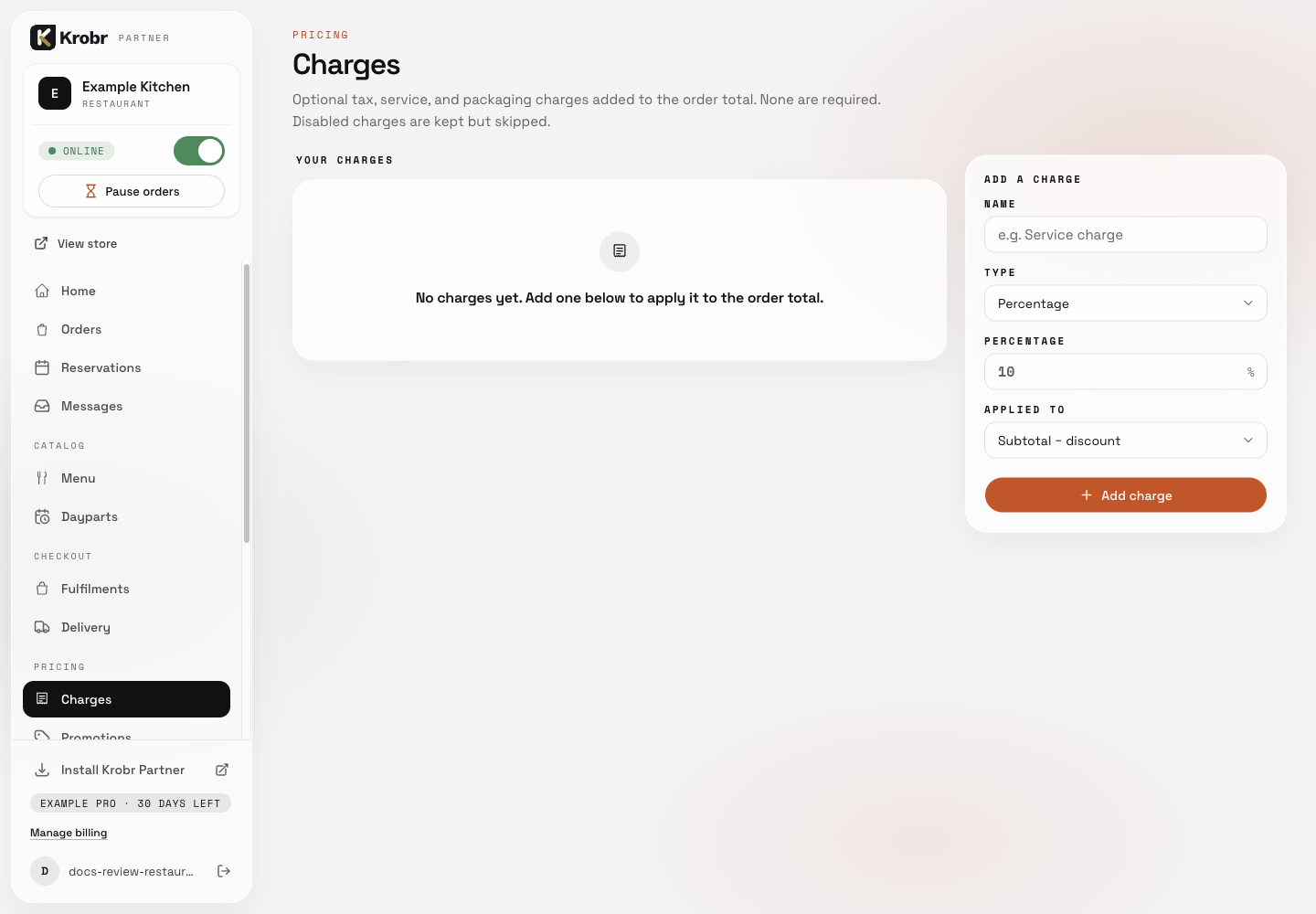
Add charges, discounts, voucher codes, and quantity tiers: find the controls in this example screen and follow the numbered instructions above. Retained English example from 13 October 2026. The Partner account area now also includes Language, which is not shown in this dated sidebar; follow the numbered steps for the current screen.
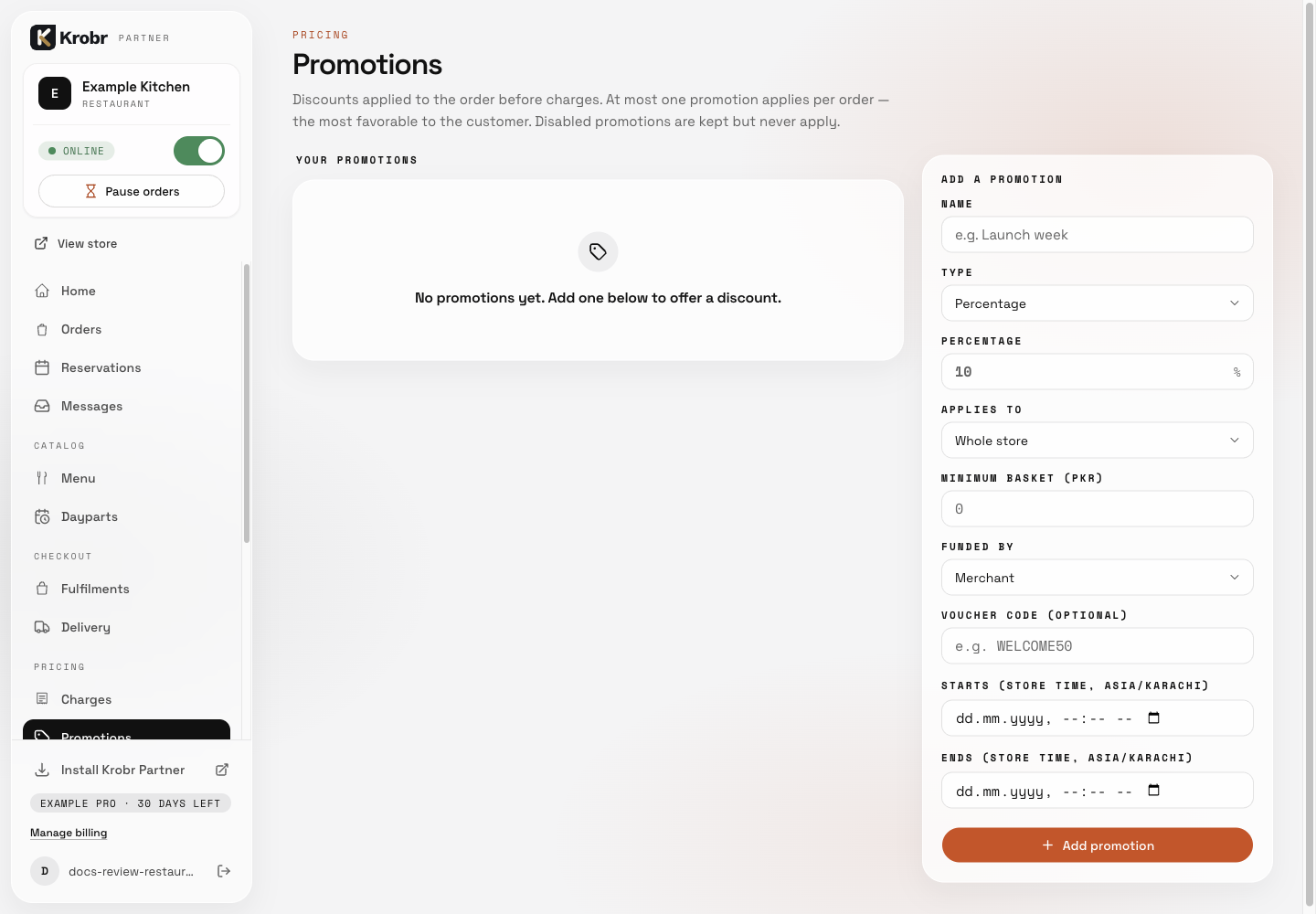
Add charges, discounts, voucher codes, and quantity tiers: find the controls in this example screen and follow the numbered instructions above. Retained English example from 13 October 2026. The Partner account area now also includes Language, which is not shown in this dated sidebar; follow the numbered steps for the current screen.