What this guide helps you do
Upload supported photos or receipts, open authorized attachments and save files before their removal date.
Before you start
Prepare a supported file under the displayed size limit. Use your own authorized account or keep the private order-status link for order attachments.
Where to find it
Use the upload control beside the relevant photo, receipt or attachment. Owners find file-removal notices and Download all in Workspace → Usage.
Step by step
-
Choose the file control and select the photo, PDF or other file type allowed by that specific field.
-
For photos, review Original or an optional crop and confirm the image. Logo image controls require a fixed 1:1 crop and Use crop, including URL imports. Source shows the uploaded size; Crop shows the saved size. Wait for upload success before saving the parent form.
-
Open the saved image or attachment and check it is readable and attached to the correct store/order.
-
For an order receipt, follow the bank-payment guide; attaching a file does not mark a payment verified.
-
When Usage warns that order files will be removed, open the due-file list and download the files you need. Download all prepares a ZIP for the listed eligible orders.
-
Open the downloaded file or ZIP on your device and confirm the contents. On a phone look in Files/Downloads or the browser's download list.
Understand the choices
-
The default per-file upload limit is 4 MB; the field's current message is authoritative. Resize or compress large phone photos instead of changing the extension.
-
Order files can be removed after the scheduled retention cutoff. Save important receipts when the notice appears; an expired file cannot be recovered from a download link.
-
File viewing requires account ownership or the relevant private order link. Do not share receipt links publicly.
-
A catalog image can be shared by a clone; permanent deletion follows the app's reference checks. Deleting an unrelated file is not a safe way to hide a product.
Check the result
The upload is visible in the intended place, and important downloads open locally with their expected contents.
If something goes wrong
-
Too large: reduce the actual file size below the shown limit. Retrying an unchanged file will fail again.
-
Unsupported type or invalid image: export a supported format and choose it again; renaming a file does not convert it.
-
Preview unavailable: check the signed-in email on the message. Switch account returns to the same file link; use the owning account or the correct private order-status link. A file removed by retention stays unavailable. Account recovery.
-
ZIP interrupted: retry online and verify the archive opens before relying on it.
Screenshots
These screenshots use demonstration data. Your names, amounts and available controls may differ. Current values on your own screen take priority.
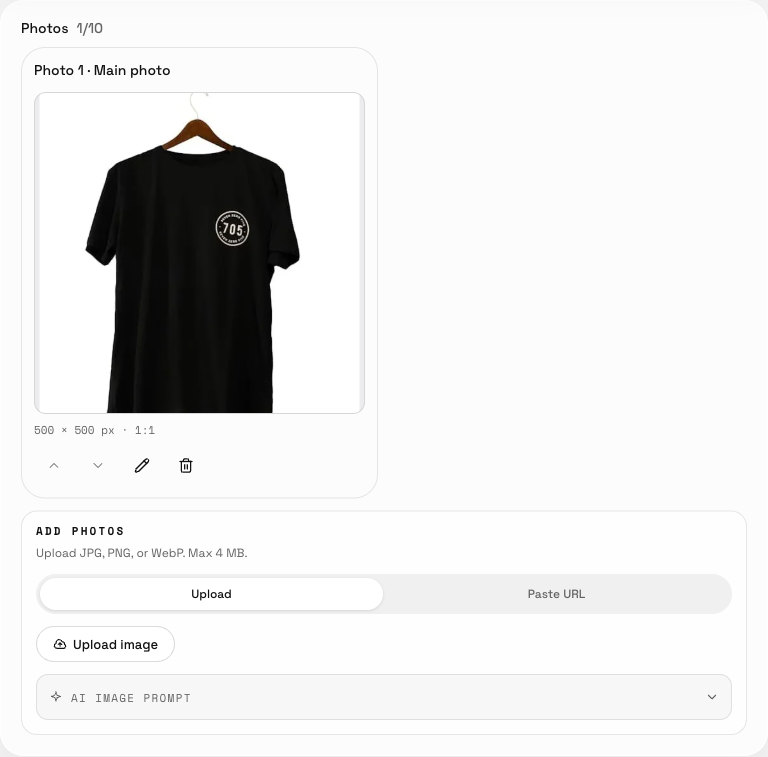
The saved gallery shows one uploaded image and its order; reopen the product to verify it.